

Follow these steps to link your Shopify store with Ship To The Moon (STTM) for seamless dropshipping fulfillment:
Step 1: Access the Store Connection Page in STTM
- Log in to your STTM dashboard.
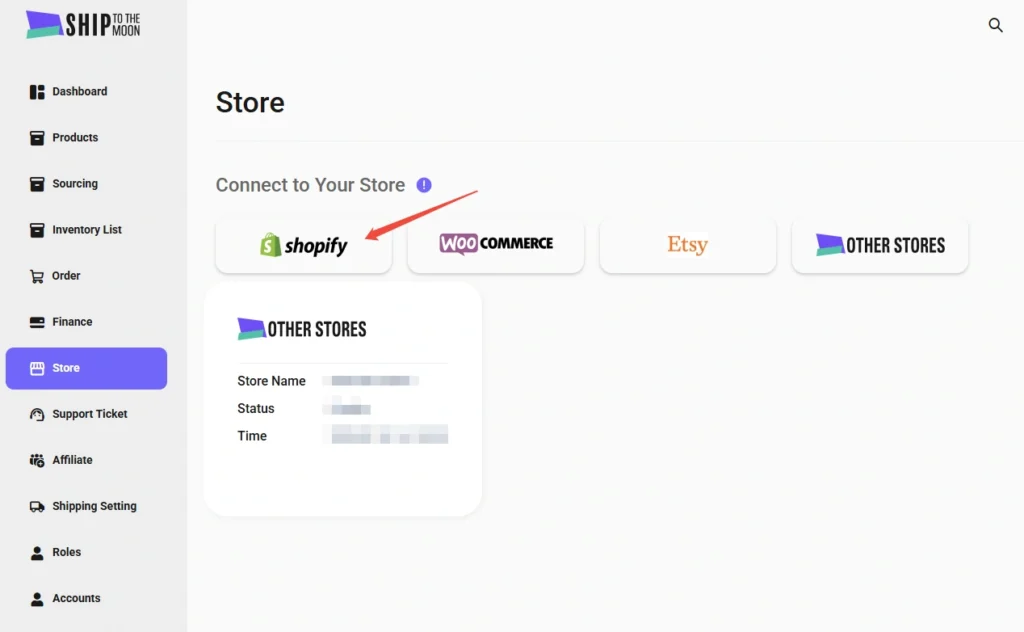
- In the left-hand menu, click Store.
- Under “Connect to Your Store”, find and click the Shopify button.
Step 2: Navigate to the Shopify App Store
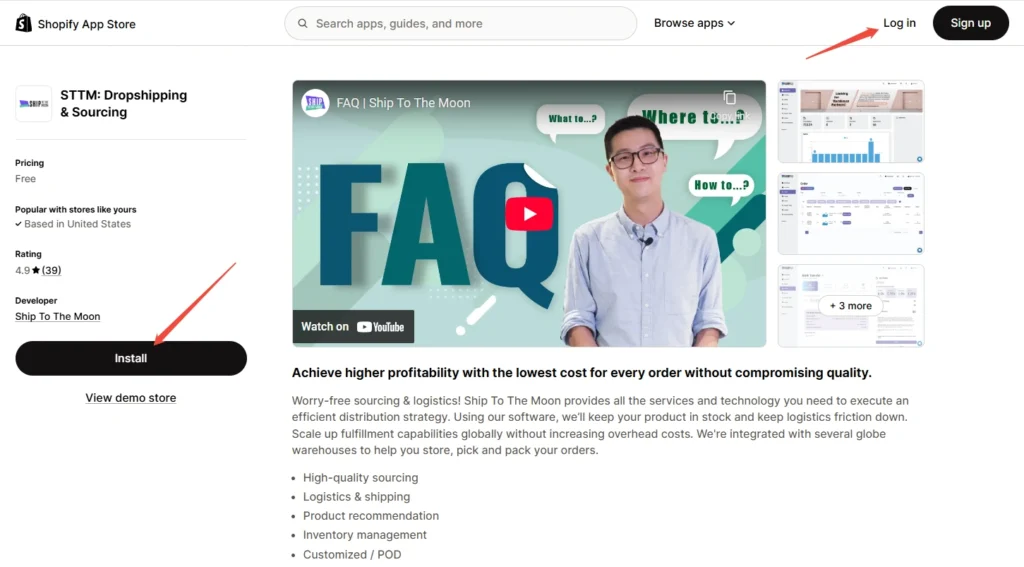
After clicking Shopify, you’ll be redirected to the Shopify App Store page for “STTM: Dropshipping & Sourcing”.
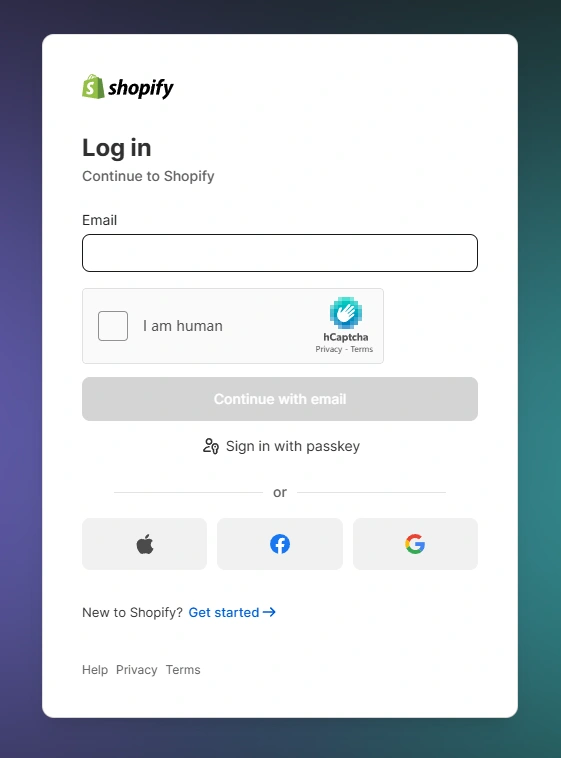
- If you’re not logged into Shopify, click first Log in (top-right corner) and enter your Shopify store credentials.
Step 3: Install the STTM App
- On the STTM app page, click the black “Install” button (left side of the screen).
- Shopify will prompt you to authorize STTM to access your store data (e.g., orders, products, inventory). Click “Install app” to confirm.
Step 4: Verify the Connection
Once installed:
- You’ll be automatically redirected back to your STTM dashboard.
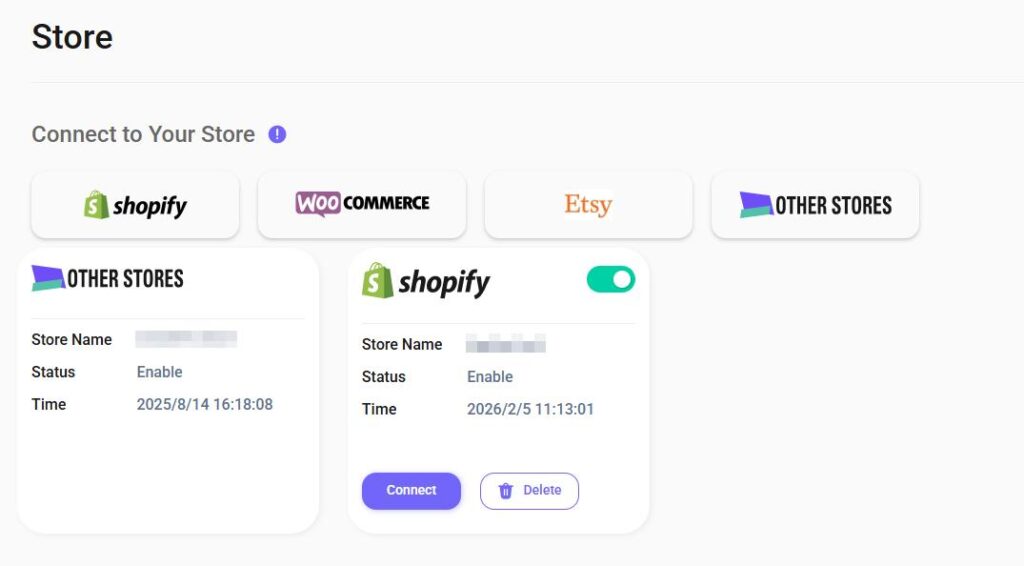
- In the Store section, your Shopify store will appear in the connected stores list, showing a status “Enable”.
What Happens Next?
- Product Sync: STTM will start syncing your Shopify products (manage this in the Products tab).
- Order Automation: New Shopify orders will auto-sync to STTM for fulfillment.
Troubleshooting
- Installation Errors: Make sure your Shopify account has permission to install apps (check with your store admin).
- No Redirection: If stuck on the Shopify login page, clear your browser cache and retry.
- Connection Issues: Reach out to STTM support via the dashboard chat for assistance.
Now your Shopify store is connected—start using STTM’s global fulfillment network!
FAQ
-
How do I know if my Shopify store is successfully connected?
After installation, you’ll return to your STTM dashboard automatically. In the Store section, your Shopify store will appear in the connected list with a status showing Enable.
-
What happens after my Shopify store is connected?
Product Sync: STTM will sync your Shopify products (you can manage this in the Products tab).
Order Automation: New Shopify orders will automatically sync to STTM for fulfillment. -
What should I do if my Shopify store isn’t connecting properly?
If the connection doesn’t appear or sync isn’t working, reach out to STTM Support through the dashboard chat, and the team will help you troubleshoot.